[ MONITORS & ALERTS ]
Uptime monitors and alerts
CanaryHub checks your URLs on a schedule and notifies you the moment something goes wrong — and again the moment it recovers. No manual refreshing, no wondering.
Uptime monitors
Open Dashboard → Monitors and hit Add monitor. Fill in a name, your URL, and optionally a health path (more on that below). That's it — CanaryHub starts polling immediately.
- Check interval: every 5 minutes on the free plan, every 60 seconds on Pro.
- Plan limits: Free covers 1 project with up to 3 monitors — enough to watch one app properly (site, API, and one more). Pro covers 3 projects with unlimited monitors each; Business (coming soon) is unlimited.
- No flapping alerts: a monitor goes down only after 2 consecutive failed checks. Recovery is confirmed on the first successful check. A single blip won't wake you up.
- Pause / resume / delete from the same Monitors page when you need to take a service offline intentionally.
Health endpoint (optional, but better)
A plain URL check can only tell you HTTP up or down. If you point the monitor at a /api/health path that returns the standard contract below, CanaryHub can also see degraded states and which sub-check (database, external API, queue, …) actually failed.
{ "status": "ok", "version": "a3f9c12", "checks": [ { "name": "database", "status": "ok", "latencyMs": 12 }, { "name": "redis", "status": "ok", "latencyMs": 3 } ]}status must be one of ok, degraded, or down. Individual check statuses follow the same three values. The endpoint should be fast and side-effect free — it runs every poll cycle.
Built your app with Lovable, Bolt, v0, or another AI tool? canaryhub.ai/connect has copy-paste recipes to drop this endpoint into any stack in under two minutes.
Telegram alerts
Telegram is the fastest way to get notified. Connect it once:
- Open Dashboard → Notifications and find the Telegram card.
- Tap Connect Telegram — a link opens the CanaryHub bot in Telegram.
- Press Start in Telegram. Done.
From then on you get a 🔴 message the moment a monitor goes down, and a 🟢 message when it recovers. On the free plan, alerts are batched — at most one update per monitor every 4 hours, so if a service flaps you get a concise summary rather than a flood.
You can also message the bot /status any time for a quick account summary — events and errors from the last 24 hours — without opening the dashboard. Disconnect from the same Settings card whenever you like.
Slack alerts
CanaryHub posts alerts into any Slack channel through an incoming webhook — no app install or admin approval needed. One-time setup, about two minutes:
- Open api.slack.com/apps and hit Create an App → From scratch. Name it anything (e.g. “CanaryHub Alerts”) and pick your workspace. Don't worry about the Client ID / secrets screen it lands on — you won't need any of it.
- In the left sidebar, open Incoming Webhooks and flip the toggle On.
- Scroll down, click Add New Webhook, and pick the channel (or DM) alerts should land in.
- Copy the generated URL (starts with
https://hooks.slack.com/services/…) and paste it into Dashboard → Notifications → Slack alerts, then hit Connect Slack. - Press Send test alert — a ✅ message should appear in your channel within a second or two.
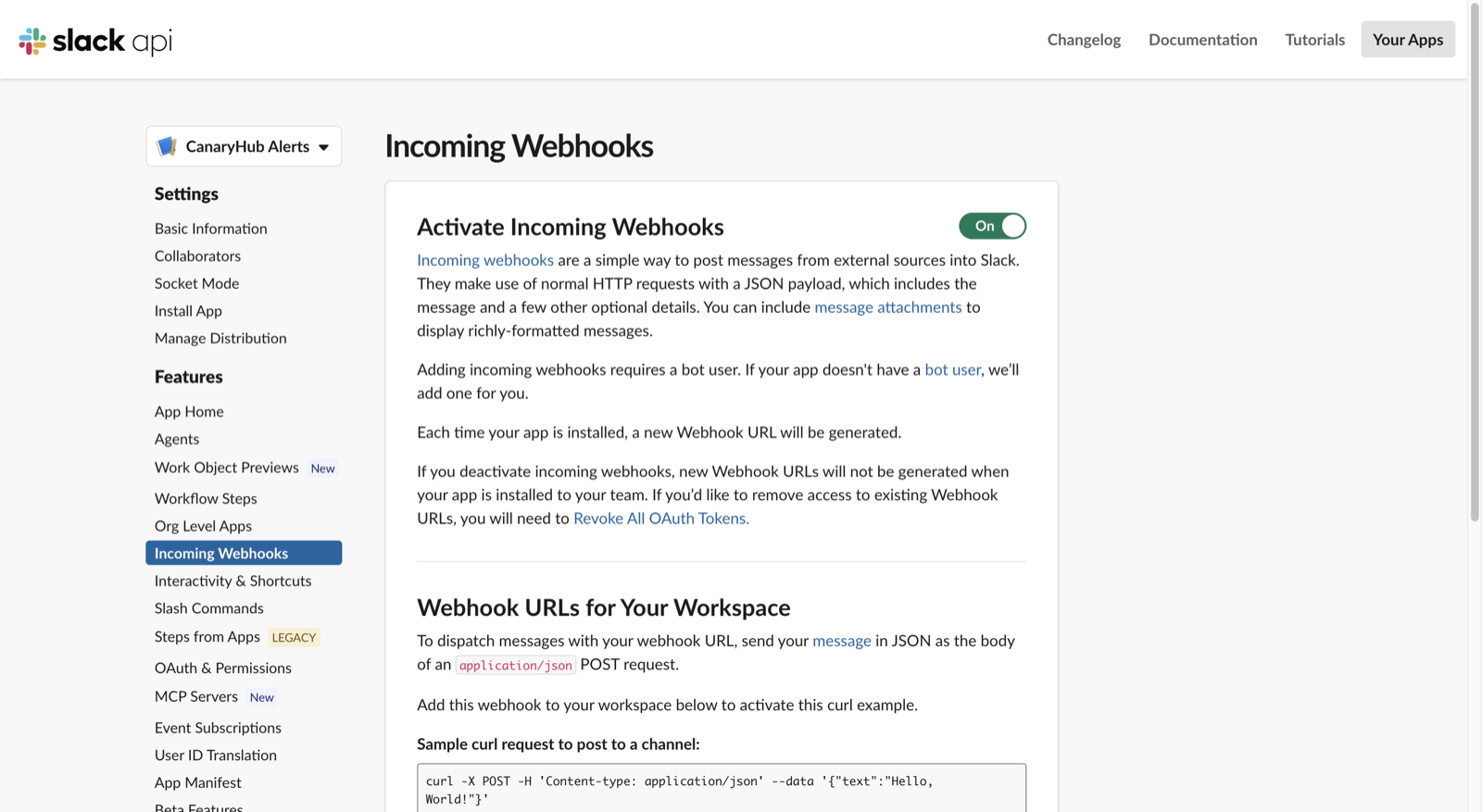
The Incoming Webhooks page after step 2 — toggle on, then “Add New Webhook” at the bottom.
Discord alerts
Discord webhooks live right inside your server's channel settings — no developer portal at all:
- In your Discord server, hover the channel you want alerts in and click the gear icon (Edit Channel).
- Open the Integrations tab → Webhooks → New Webhook.
- Click your new webhook and hit Copy Webhook URL (starts with
https://discord.com/api/webhooks/…). - Paste it into Dashboard → Notifications → Discord alerts, hit Connect Discord, then Send test alert to confirm.
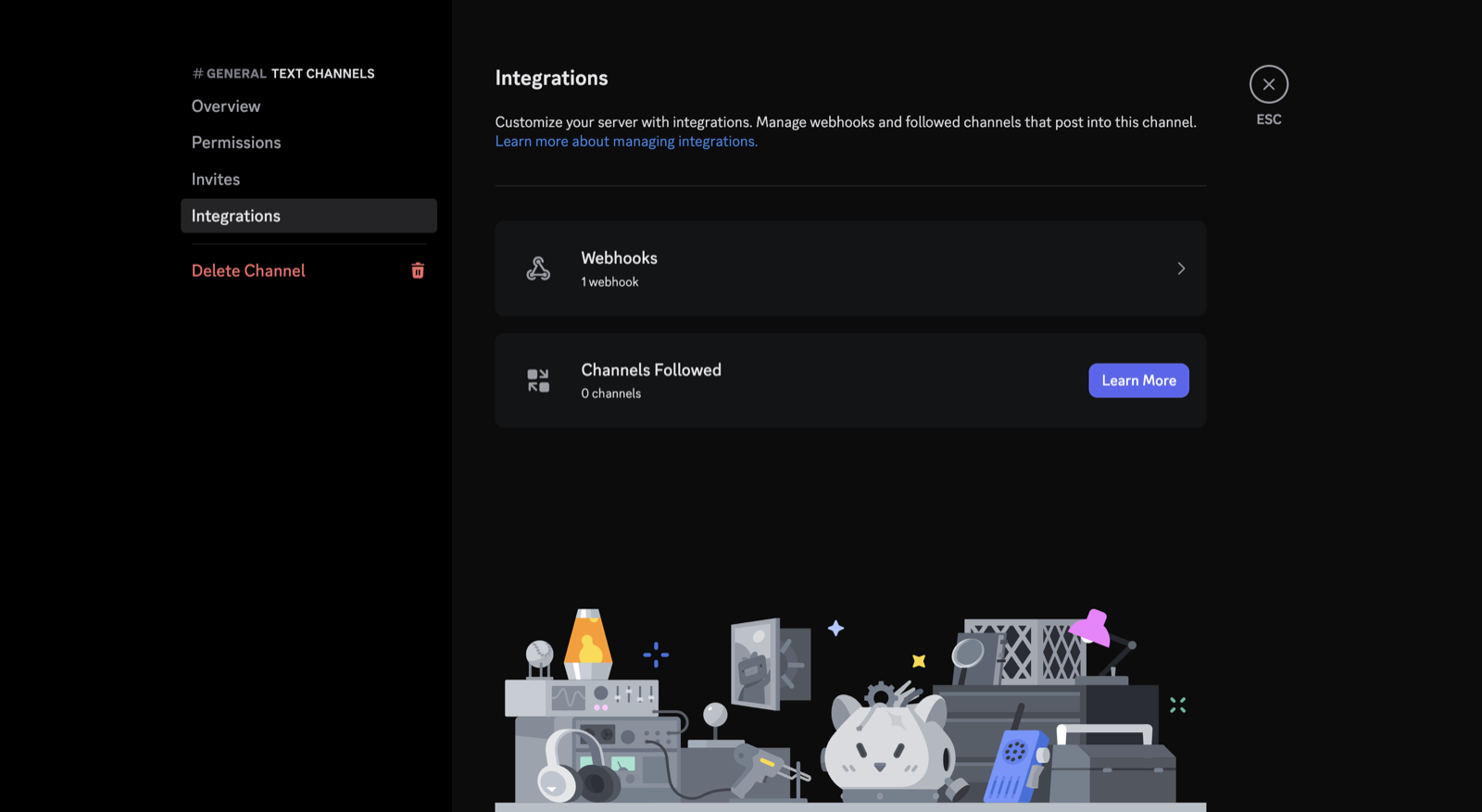
Channel settings → Integrations — webhooks are two clicks from any channel you manage.
For both channels: the webhook URL is a secret — anyone who has it can post to your channel, so treat it like a password. Disconnect any time from the same Notifications card; alerts follow your urgency, quiet-hours, and detail-level preferences just like Telegram.
SMS alerts
SMS alerting is live for US numbers. Down/recover texts arrive from CanaryHub's dedicated number, and the same number answers commands.
- Register your number. Add it in Settings → SMS and confirm consent — alert texts start with the next incident.
- Text commands. Text the number any time and get replies:
/status(account summary),/whoami(confirm which account your number is linked to),/mute//unmute(silence and restore alerts),/help(command list). StandardSTOP/STARTalso work and mirror into your alert settings.
SMS alerts are always sent in the compact format regardless of your detail-level setting, and message frequency depends on your monitors — reply STOP any time to opt out.